adsense.

ad

Tuesday, September 9, 2014

Apple unveils two new iPhones, Apple Watch and ApplePay


BY :RAHUL.BERA

In one of the most ambitious product launches in its history, Apple unveiled two new iPhones, a smartwatch and a mobile payments platform on Tuesday.
The iPhone 6 and iPhone 6 Plus are bigger, rounder and faster. The Apple Watch does more than any smartwatch on the market today. And Apple hailed the Apple Pay payments system for its security and ease of use.
New, bigger iPhones:
"Today, we are launching the biggest advancement in the history of iPhone," Apple CEO Tim Cook said at an event in Cupertino, Calif. "They are without a doubt the best iPhones we've ever done
The iPhones have curved edges and bigger screens that measure 4.7 inches and 5.5 inches, up from just four inches on the iPhone 5S.
To help users handle the bigger phone, Apple has moved the on-off switch to the right edge of the phone. And when you double-tap the home button, the entire display will slide down so users can access items on the top of the screen.
Crucially, the bigger displays allow for bigger batteries: 11 hours of video watching on the iPhone 6 and 14 hours for the iPhone 6 Plus -- up from 10 hours on the iPhone 5S.
The iPhone evolved
evolved Both new iPhones feature Apple's new A8 processor, which is 25% faster than the iPhone 5S. The M8 co-processor will allow fitness apps to tell the difference between walking and biking and even measure your relative elevation.
The iPhone 6 and iPhone 6 Plus will feature an 8 megapixel camera that comes with a new sensor that Apple claims will help the camera focus faster.
And the iPhones will come with Apple's new iOS 8 software, featuring a new HealthKit application that monitors users' heart rates, sleep, weight and blood pressure among other health-related information. Apple said iOS 8 will be available Sept. 17 to customers who have an iPhone 4S, iPhone 5, iPhone 5C or iPhone 5S.

Both iPhones will be available Sept. 19 in the United States and eight other countries. Pre-orders will begin on Friday. The 16 GB iPhone 6 will be available for $199. The 64 GB version will cost $299; $399 will get you 128 GB. The iPhone 6 Plus will start at $299.
Apple will also discount the iPhone 5S and iPhone 5C by $100. The iPhone 5S will maintain its aluminum casing -- it won't get the iPhone 5C's plastic treatment.
Apple Watch: Apple (AAPL,Tech30) also unveiled the Apple Watch smartwatch, the company's first wearable device. The Apple Watch pairs with the new iPhones to display notifications. It features a magnetic charger, health and fitness apps and a crown that controls zoom and scrolling with a twist. Oh, and it will tell time too -- allowing users to choose between multiple watch faces.

Apple said it will sell three versions of the Apple Watch, including a sports model and an 18 carat gold model called the "Apple Watch Edition." The Apple Watch also comes in two sizes, one slightly smaller than the other.
The Apple Watch will debut with many third-party apps that make use of the watch's various features, including a Starwood Hotels (HOT) app that lets you unlock your door with your wrist.
The watch requires an iPhone, but it will work with some older versions of the iPhone, including the iPhone 5, 5C and 5S. It will start at $349 and will be available in early 2015.
"It'll be worth the wait," said Cook.
Google (GOOGLTech30) has already unveiled its smartwatch software called "Android Wear."Samsung (SSNLF), Motorola, LG and other gadget makers have already launched smartwatches, which have received mixed reviews and tepid interest from consumers.
Apple Pay: Apple also unveiled a new mobile payments platform called Apple Pay, which works with the new iPhones and the Apple Watch.
The new iPhones will be able to interact with payment terminals in a simple tap. Apple has deals in place with the major credit card companies, includingAmerican Express (AXP),MasterCard (MA) and Visa (V), as well as several major retailers.
Apple touted Apple Pay's security. The company said it doesn't store your credit card information on your phone -- and the number isn't even given to the merchant. Apple Pay also works with the iPhone's TouchID sensor -- allowing people to pay by touching the home button while tapping their phones on a payment terminal.
"Our ambition is to replace this," said Cook, holding a wallet.

Friday, September 5, 2014

How to Install WhatsApp on PC, Easy Step by Step Tutorial


By rahul bera

WhatsApp is one of the most popular cross-platform messaging app which allows you to send and receive SMS without any charges. Whatsapp has one of largest active user base of 300 million and around 20 million in alone India. WhatsApp can be used on any Smartphone Including Android, iOS, BlackBerry, Windows Phone and Asha platform, but what if you want to use it in PC? yes you can install Whatsapp on PC!
Install WhatsApp om PC or Laptop
How to use WhatsApp on PC? Installing WhatsApp on PC is very simple. Just follow below steps to download and Install WhatsApp on  PC or Laptop.
Requirement to use WhatsApp on  PC or Laptop:
  • A Laptop or PC with Windows OS
  • Working Internet Connection

How to Install WhatsApp on PC:

Below I have listed Two methods to Install Whatsapp on PC, follow the easiest one for you.
  • Download and Install WhatsApp on PC using BlueStacks.
  • Download and Install WhatsApp on PC using Wassapp. 

Method 1: To download and Install Whatsapp on PC using BlueStacks

Step 1: Download BlueStack (free Windows Application)
Step 2: After Finishing the Download Double Click on Downloaded File, Click ContinueClick Install.

Step 3: Now Download WhatsApp APK File

Step 4: After Finishing the Download Double Click on Downloaded WhatsApp APK file.


Step 5: Now whatsApp will install in your PC.


Step 6: Now Open BlueStacks (Click on BlueStacks icon in your Desktop)


Step 7: Now in BlueStacks >> Click on My Apps.


Step 8: Now you’ll see WhatsApp >> Click on it.


Step 9: Accept Terms and Condition 


Step 10: Type your Mobile Number in the Field
Note: First type your Country Code like 91 for India and then your Mobile Number
Step 11: Now WhatsApp will try to verify your number, but it will show fail message.
Step 12: Now click on Call Me >> You’ll receive a automatic call with a confirmation number, write down that number .
Step 13: Now type the received number in verification field and your done!
Enjoy WhatsApp on  PC!

How to Add Contacts to  WhatsApp ?

In Phone WhatsApp automatically checks for your contacts but in PC you have to add it manually. Follow below steps to add contacts in Whatssapp using Bluestecks.
Step 1: Open WhatsApp in Bluestack
Step 2: Click on Menu icon at the Bottom
Step 3: Now Click on Contacts Icon
Step 4: Again Click on Menu Icon
Step 5: Click on Add Contact
Step 6: Fill the given fields with Contact Number and Name
Step 7: Click on Done.
To add more contacts Follow same steps.
Update: Seems like the second method is not working anymore. Alternatively you can use Youwave to Install Whastapp on PC. Here is how to do it >> Install Whatsapp on PC using Youwave

Method 2: To download Whatsapp on PC using Wassapp Follow below steps

Wassapp is a unofficial Whatsapp client and It works for like the Android Emulator on Windows OS running PC. In the second method, we will be using Wassapp to install Whatsapp on PC.

Follow below steps to Download and Install Whatsapp on PC using Wassapp

Step 1: Download and Install Wassapp
Step 2: After installing, open Wassapp and login using your Whatsapp username and Password. If you don’t have already created account then register.
Step 3:  Click on register button
Step 4: Now provide your Phone number and Password
Note: For an Android phone, the password will be same as its IMEI number. You can find the IMEI Number at the back of Your Android device under battery or by typing this code : *#06#
Step 5:  Now choose the mode of verification either by SMS or Phone call and press Request Code.
Step 6: Now if you have selected SMS then you will get a SMS from Wassapp with a code and if you have selected phone call then you will receive a computerized call with unique code, Note it down.
Step 7: Put the code you received by SMS or Phone call in Wassapp client and now you will get a computer-generated password and  you can use that password for login.
That’s it! Now you can use Whatsapp on PC and can send and receive SMS and messages for the added contacts. If you face any problem then let us know in the comments and don’t forget to share this with your friends.


Windows 8

Enjoy the latest edition of Windows Blue


By : Rahul bera

Download Windows 8 for free! Microsoft has launched a new version of the Windows operating system, Windows 8.1 Enterprise edition, a great opportunity to try out all the innovations included regarding previous versions.
The people at Redmond have tried to reinvent the popular operating system with Windows Blue. The drive of the new mobile and tactile devices has had a direct impact on the development of this new OS.

New Windows 8 Modern UI Interface and start screen

The new Windows 8 Modern UI tactile interface of Windows is a real revolution. Previously known as Metro, it has a clearly graphic aspect, following the line set forth by Windows Phone. Your contents and applications are organized and structured into blocks that you'll have the possibility to customize. Nevertheless, even though lightly based on the phone operating system, they have greatly improved how it is handled and it is a lot more efficient and effective.
New applications launched in Windows 8 Modern UI occupy the full screen and they 'forget' about toolbars and similar elements. These applications are immersive. What's more, they are no longer individual elements that attached to the operating system, they now become part of it and of one another, in such a way that the contents and the information from one application will automatically be available to use in another.
We have reinvented Windows.
The system's Start screen was one of the most criticized aspects by users. In this Windows Blue, the start screen has been redesigned regarding the first versions, although it maintains the innovating master lines of the beginning.
The customization options of this environment have also been expanded. Apart from having amuch more assorted palette of colours or offering the possibility to import your own images, you have four different sizes for icons.

And the desktop?

This new concept doesn't eliminate the traditional desktop that everyone is so used to. As if it were yet another application, Windows 8 has its own desktop, which is a copy of the one used in Windows 7. You will also use it with each application that isn't compatible with Modern UI.
Nevertheless, the activity center will now be thewelcome screen, where it will be possible to access all the components of Windows 8 be it using a tactile system or a conventional keyboard and mouse.

Windows Store

Just like Apple and Google, Microsoft has the idea in mind of creating their own Windows 8 virtual shop where it will be possible to access all the applications at the same time. Christened as theWindows Store, it's a direct gesture towards developers in such a way that it will allow them to distribute their products in a more cost-effective manner.
Thus, the users will be able to enjoy a service similar to the App Store by Apple in Windows 8.

Features

  • Compatible with keyboards, mouse, stylus and even your fingers on a touch screen.
  • Can be used with a desktop PC, laptop, netbook, tablet...
  • Compatible with Windows 7 programs.
  • New Internet Explorer 10.
  • New chip architecture. It boots up immediately.
  • Intelligent battery use.
  • Greater integration of SkyDrive.
  • Share screenshots from the "Charms Bar".
  • Compatible with any programming language.
  • Multitask support, dividing the screen into two to offer space for your applications.
  • Reformulated search system: searches on the OS and within applications.

What's new in Windows 8.1 Enterprise RTM

  • New home screen.
  • Improvement of the management features.
  • Increased security.
  • Better integration with mobile devices.
  • Skype integrated as instant messaging platform.
  • Improved user experience.
Start downloading Windows 8.1 Enterprise for free and try out all the innovations and improvements included by Microsoft to turn the system into what it should always have been.
Requirements and additional information:
  • This is a trial version that can be tried out for 90 days. To use this trial, you have to complete the activation before October 31st, 2014.
  • Windows 8.1 Enterprise is offered as an ISO image. To use it you will have to transform it into a bootable product by storing it on a DVD or USB pendrive.
  • For the 64-bit installations of Windows 8.1 Enterprise, the CPU must also be compatible with CMPXCHG16b, PrefetchW AND LAHF/SAHF.
  • To use Windows 8.1 Enterprise you must logon to your computer with a Microsoft account.
  • During the installation, Windows will ask you to activate it. This software doesn't require a product key. You can find more information here.
  • After the trial period, you must replace the operating system of your system and reinstall all the programs and data. The trial edition cannot be updated to a licensed version of Windows 8.1 Enterprise. You have to carry out a clean installation.
information
Download

How To Install Windows 7 From USB

By: rahul bera

A Tutorial on Using a USB Flash Drive To Install Windows 7


The fastest way to installwindows 7 is from abootable usb drive. You can cut the install time down to around 15 minutes compared with 30-40 via DVD if you use a fast drive.
People still asking me to explain what is the best way to do this as many of the guides online are too complex, or require third party software which doesn’t always work as they supposed to.
With this BootableUSB guide all you need to ensure is that your motherboard supportsUSB booting, and this is a common feature now for most of the computers.
Today I am going to publish a step by step guide which works perfectly and doesn’t require any additional tools – I have been doing it for some time now to create bootable Windows install drives.
You need to get hold of a fast USB 2.0 flash drive. It doesn’t need to be 32GB or bigger,however, all you need is a 4GB unit. The faster it is, the better.
What you need:
– Windows 7 DVD install disc or ISO image
– USB Drive (4GB+ and as fast as you can get)
– Running Windows Operating system
– Working set of hands and eyes
– A few minutes of your life
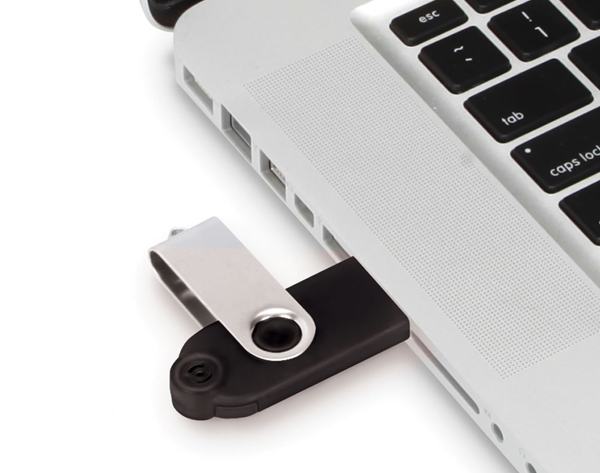
Plug in your USB drive in the USB port:
Usb Drive Plugged
Before going any further, make sure you have removed any important files on your drive to a safe location, what we are about to do next is to erase the entire contents of the drive.
Insert your DVD of Windows 7 into the computer, but don’t start the normal install process.
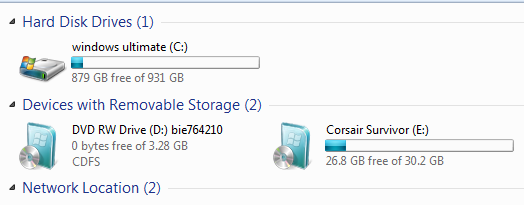
Open your ‘My Computer’ and make a note of the drive numbers of both the USB drive and the DVD drive with Windows 7 files on it.
Usb And Computer Drives

As you can see from the image above, the DVD drive is drive has letter D assigned and the USB drive is E.
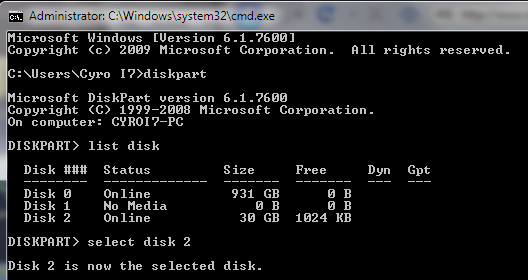
Open the command prompt with admin rights. Type cmd in Start menu search box and hit Shift+Ctrl+Enter.
To keep things really easy, if you see text in upper case, it means this is what you type into the command prompt (you don’t need to type in upper case).
cmd-prompt-usb-bootable

Next type
DISKPART
this loads the diskpart application we need to proceed
Then type
LIST DISK
the image above shows our 32 GB USB drive is listed as DISK 2
so you have to type
SELECT DISK 2 (your USB Drive may have a different number, don’t follow exactly this text it depends on your usb drive)
You will get a successful response “Disk 2 is now the selected disk”
Clean Cmd USB Drive
Next we want to clean the USB drive
Type:
CLEAN
you will get a successful response ‘DiskPart succeeded in cleaning the disk”.
Clean USB Drive

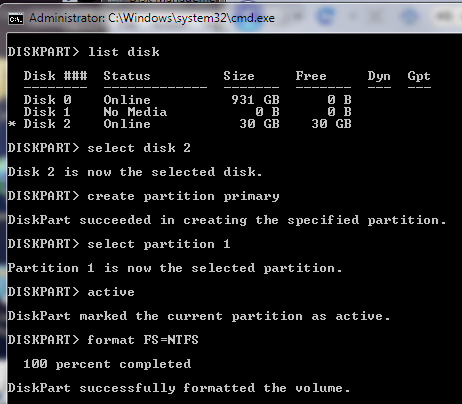
After the drive is cleaned follow the list in the image above (detailed below in list order) – you can also note the successful text responses from the OS as you enter each command.
SELECT DISK 2 (or what number your USB drive has)
CREATE PARTITION PRIMARY
SELECT PARTITION 1
ACTIVE
FORMAT FS=NTFS
Formatting can take a little time depending on the size of the drive, our 32GB unit took about 10 minutes to format - you will see a percentage readout until it is finished.
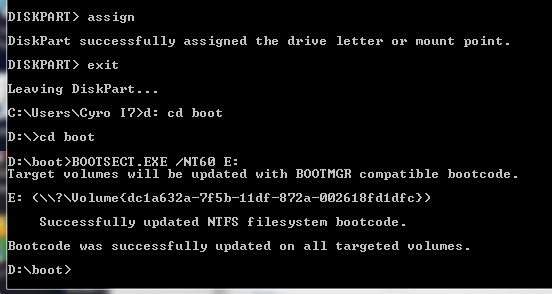
Bootable USB Final Cmd Prompt
Next type:
ASSIGN
EXIT (DISK PART will exit)
Type D: CD BOOT (substitute the “D” if necessary with the letter of your Windows 7 DVD drive)
then key
CD BOOT
then
BOOTSECT.EXE /NT60 E: (substitute the “E” if necessary with the letter of your now ready USB drive) – we are telling the system to create a boot sector file on the USB drive.
Now you can exit the command prompt and copy all the files on the Windows 7 DVD to the USB drive.
Once this step is finished you’ll be ready to boot from this drive, all you need to do is configure your motherboard bios setup to boot first from USB rather than hard drive or optical drive. If you don’t know how to do this, refer to your specific motherboard manual or search the internet.
Now, Windows 7 installation should take between 40% and 60% of the time it does from the DVD disc.
Last step: Drink a cup of tea, from now on you can do this again and again :)